I’ve been experimenting a lot with AI tools for frontend work these days, and it’s changing how I build stuff. I’m a mid-level dev, comfortable with React, Next.js, Tailwind, that kind of things. These tools help me get professional-looking UIs without too much hassle or hiring a designer.
I’ve pulled together many approaches that work well for me right now. They’re practical for everyday projects, and I mix in some extra resources I’ve found useful. If you’re at a similar level, these should speed things up a bunch.
1. Start with Shadcn UI for Quick, Customizable Components
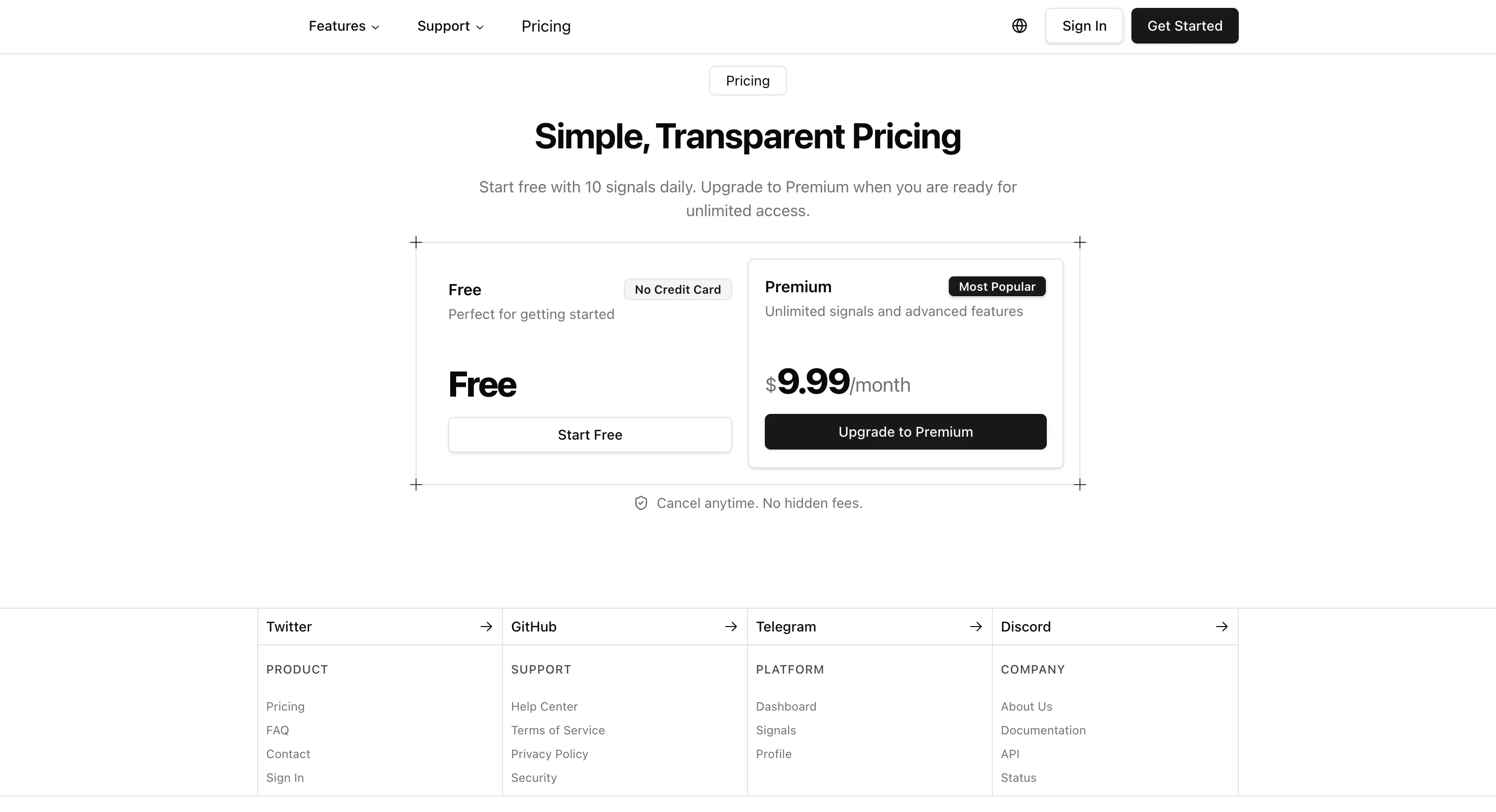
Shadcn UI is still my go-to for getting a solid base fast. The components are built on Tailwind and Radix, so they’re accessible and easy to tweak.
One way I start: Head to https://ui.shadcn.com/create, pick a preset theme (they have tons now – minimal, neon, retro, whatever fits), choose Next.js or your framework, and it spits out a CLI command to install a full styled setup.
But another great option is the Shadcn UI Directory at https://ui.shadcn.com/docs/directory. This is a community registry full of ready-made components and blocks from different creators. You can search or browse categories like Buttons, Cards, Forms, Charts, even full pages or animations.
How to use it:
- Search for what you need (e.g., “8bitcn”).
- Add it with the CLI:
pnpm dlx shadcn@latest add @8bitcn/button). - It drops the code right into your project, no extra deps usually.
It’s awesome for mid-level devs because you get the full source code to customize, and it works perfectly with your existing Shadcn setup. Check dependencies first if it uses something like Framer Motion.
Pro tip: Combine presets with directory items – start broad, then grab specific fancy bits.
2. Generate Designs with Google Stitch and Bring Them to Code
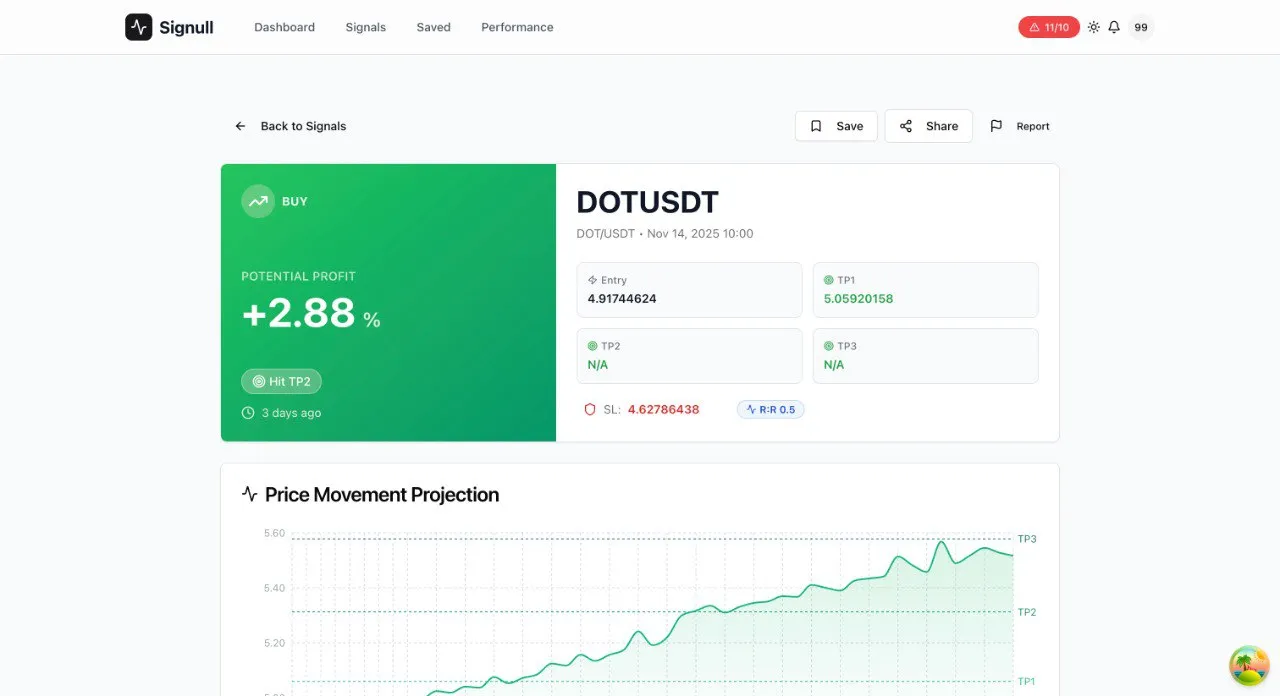
Google Stitch (https://stitch.withgoogle.com) is handy when I have a vague idea but no Figma mockup. You describe your page or upload reference screenshots, pick colors, and it generates full layouts or prototypes.
I usually:
- Grab a palette from coolors.co.
- Upload inspo images from sites like https://mobbin.com/.
- Let it make a few options, tweak in the prototype view.
- Export code snippets or feed the design to Claude for full implementation.
It outputs clean, responsive Tailwind-ish code, great for dashboards or landing pages.
3. Level Up Your UI with the Frontend-Design Plugin in Claude Code
If you’re using Claude Code and want to avoid those generic AI-generated designs (you know, the usual purple gradients and boring fonts), try the official frontend-design plugin. It’s a game changer for getting more creative and polished frontends.
How to set it up and use:
- In Claude Code, run:
plugin install frontend-design(from the official Anthropic marketplace). - Restart Claude Code so it loads properly.
- In your prompt, explicitly say something like “use the frontend design skill” or “apply frontend-design skill” to activate it.
- Then describe what you want: e.g., “Turn this Laravel homepage into a modern SaaS landing page with Tailwind CSS, use the frontend design skill.”
What it does: The plugin injects smart design rules – better typography choices, unique fonts (no overused ones), cohesive themes, subtle animations, dynamic effects, and it avoids cliché stuff like generic gradients. The output feels more “editorial” with good spacing, hierarchy, and atmosphere.
I’ve tested it on landing pages and dashboards – it adds things like loading effects or richer feature sections that vanilla Claude might skip. Sometimes the code gets a bit more complex, but the visual result is worth it. If you prefer cleaner code, you can iterate and ask to simplify.
Check the skill details here: https://github.com/anthropics/claude-code/blob/main/plugins/frontend-design/skills/frontend-design/SKILL.md
Super useful for mid-level devs who code more than design.
4. Fix UI Problems Fast with Drawbridge
Drawbridge (https://github.com/breschio/drawbridge) is the cool open-source tool that acts like Figma comments but for your live local site. It’s perfect for visual debugging with Claude Code or Cursor.
How it works:
- Install the Chrome extension and connect to your project folder.
- Run your dev server (localhost).
- In the browser, press R to draw a rectangle around a buggy area, or C to add a comment.
- Add text like “This button is misaligned on mobile” or “Make this card hover effect smoother”.
- It captures screenshots automatically and batches everything into a markdown file with selectors and images.
- Then run the “bridge” command (or slash command in Claude) – it sends all those annotations as prompts to Claude.
- Claude analyzes the visual issues and suggests/fixes code directly.
It’s way better than describing problems in text. Great for spacing issues, responsive bugs, or when something just “looks off”. Works best with Claude Code for applying fixes.
5. Put It All Together: A Solid Workflow
My usual chain:
- Pick inspiration and colors.
- Prototype rough layout in Stitch.
- Scaffold project with Shadcn (presets + directory picks).
- Use Claude Code with the frontend-design plugin for better aesthetics.
- Spot issues? Fire up Drawbridge for quick visual feedback loops.
- Deploy!
To keep things unique, always override defaults – custom fonts, unusual grids, reference specific brands.
These tools make me way faster, and the results look polished. I’ve shipped a few personal projects lately that I’m actually proud of.
What tools are you using for UI these days? Share in comments if you’ve got tips!
Useful links:
- Shadcn UI: https://ui.shadcn.com
- Directory: https://ui.shadcn.com/docs/directory
- Google Stitch: https://stitch.withgoogle.com
- Mobbin: https://mobbin.com/
- Drawbridge: https://github.com/breschio/drawbridge
- Coolors: https://coolors.co
- Claude Code Plugins: https://code.claude.com/docs/en/plugin-marketplaces